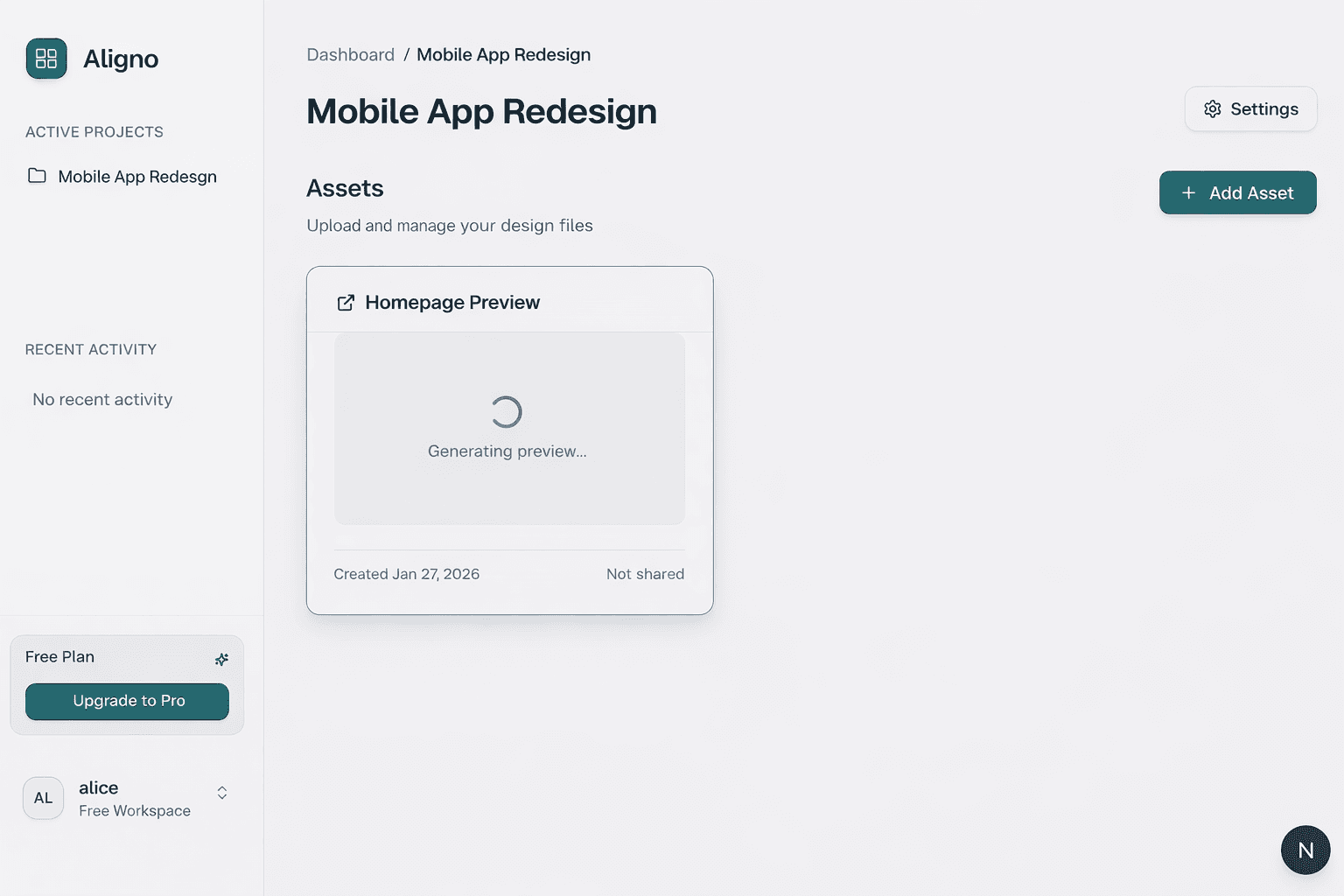
Projects
Organize your work into Projects. A project usually represents a client, a specific campaign, or a product feature.
Creating a Project
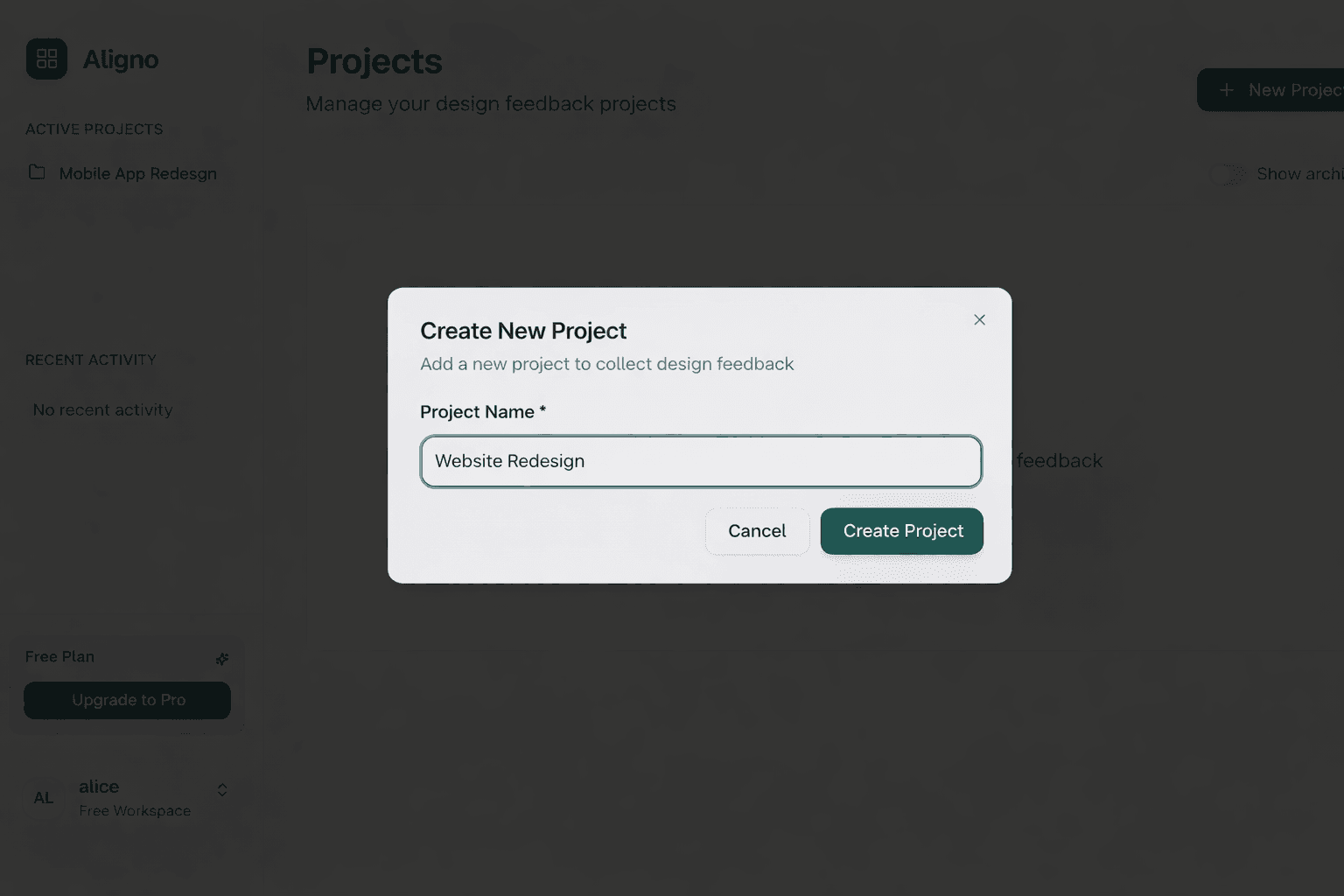
To start, click the New Project button on your dashboard. Give your project a clear name so you can find it easily later.
Project Settings
You can rename or archive projects at any time. Archiving hides the project from your main view and disables any shared links for its assets. You can unarchive it later and re-enable sharing per asset if needed.
Archiving vs. Deleting
Archiving hides a project from your dashboard and disables its share links, but preserves all data. You can unarchive it later and everything comes back as it was.
Deleting permanently removes a project along with all its assets, comments, and approval history. This cannot be undone.
Use archiving for completed work you might need to reference later. Use deletion only when you're certain you no longer need the project.
Plan Limits
Projects are unlimited on every plan. What differs between Free and Pro is the asset limit. See Account & Billing for full plan details.
Managing Assets
Inside a project, you can add assets. The Free plan includes 1 asset; Pro is unlimited. Each asset represents a single design, document, or webpage that needs review.
Supported Asset Types
- Images: PNG, JPG, WebP, and GIF files up to 10MB.
- PDFs: Multi-page documents up to 50MB. Reviewers can navigate pages and pin comments to specific pages.
- Videos: MP4, MOV, and WebM files up to 100MB. Uploads are transcoded to H.264 MP4 with a poster frame, and reviewers can pin comments at specific timestamps on the timeline.
- Webpages: Live previews via URL. Great for staging sites and prototypes.
Each asset gets its own share link, feedback thread, and approval status. You can also upload new versions of an asset. Previous versions and their comments stay in the version history.