Feedback & Approvals
Collect precise feedback from clients and get clear approval decisions. No more guessing what "looks good" means.
Commenting
When you share an asset link, clients can leave two types of comments:
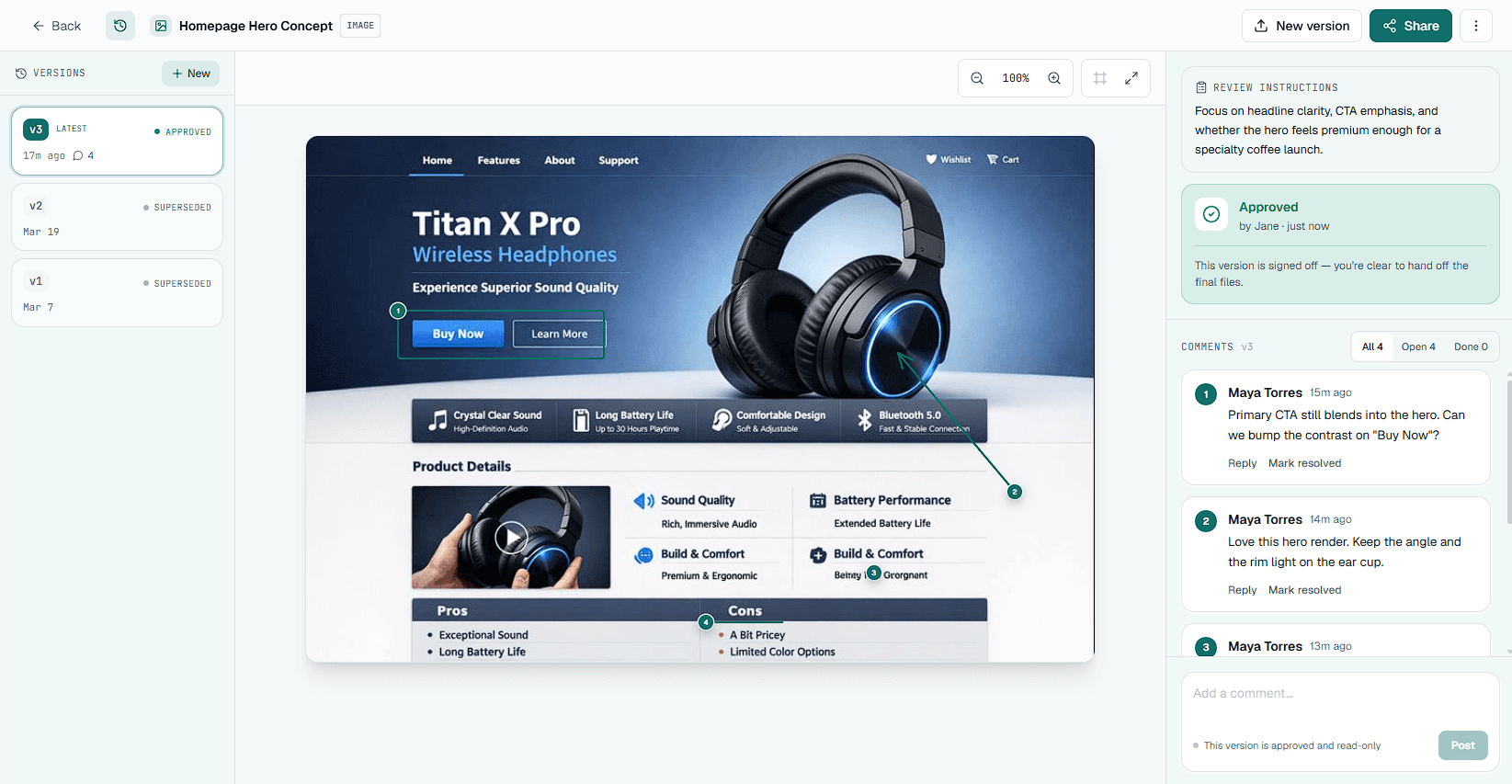
- Pinned comments. Click anywhere on the design to pin feedback to a specific spot. No more "that thing on the left."
- Markup shapes. Instead of a single point, a reviewer can draw a box around an area, an arrow pointing at something, or a freehand mark. The comment stays attached to whatever they drew.
- General comments. Overall feedback that isn't tied to a specific location.
Pins and markup work the same way across all four asset types, and markup is available on every plan, including the free tier.
On PDFs, pinned comments attach to a specific page. Use the page controls to move between pages and see page-specific pins.
On videos, pinned comments are anchored to a precise timestamp. When a reviewer pauses to leave feedback, the current frame is captured with the pin. Clicking the comment later seeks the player back to exactly that moment.
Each comment is attributed to the name the client enters, with a timestamp. You can see exactly who said what and when.
Managing Comments
As feedback comes in, you'll want to track what you've addressed and what's still outstanding.
Resolving Comments
When you've addressed a piece of feedback, mark the comment as resolved. This keeps your feedback list clean and shows progress. The typical workflow:
- Client leaves a comment: "The logo should be bigger"
- You make the change in your design tool
- Mark the comment as resolved in Aligno
- Upload a new version when all feedback is addressed
Filtering Comments
Use the filter buttons to switch between views:
- All. Every comment, resolved or not
- Open. Only unresolved comments (what still needs work)
- Resolved. Comments you've addressed, kept for reference
Handing the round to whoever does the work
When a client requests changes, the email you receive lists every open comment on that version, numbered as the client saw them, with the page or timecode and any attachments, and your out-of-scope items in their own section. On the review page, Copy change list (in the ⋯ menu and in the decision panel) puts the same list on your clipboard as plain text, ready for a ticket or a message to your developer. The sign-off PDF carries it as “Open changes”.
Calling out scope creep
When a comment asks for something outside what you agreed, mark it Out of scope from the comment's actions and add a one-line note if you like (“Quoted separately”). Your client sees the tag and the note on the review page, and the sign-off PDF lists those requests in their own section, so the record separates what was asked from what this project covers. Only you can set or remove the tag; it does not change whether the comment is open or resolved.
Approvals
The ultimate goal is a clear decision. Clients can set the status of an asset to one of two states:
What happens after approval?
When an asset is approved:
- The approval is recorded with the approver's name, email (if provided), and timestamp
- The asset becomes read-only, so no new comments can be added
- You have a clear record for your files that the client signed off
If you need to make changes after approval, upload a new version. This resets the approval status so the updated design can be reviewed.
On a paid plan you can also export an asset's comments and decision history as a CSV or a client-ready PDF sign-off. See exporting feedback.